


Adobe Stock AI Studio: What It Actually Changes for Creative Teams Under Deadline
NewsPhoto and ImageVideo May 8, 2026 Michael Franco

Producing content for a brand used to follow a predictable rhythm. You briefed a campaign, scheduled a shoot or a design sprint, sourced your assets, and built toward a delivery date that gave everyone enough room to work. That rhythm is mostly gone. Social media alone now requires a volume of visual output that would have seemed unreasonable five years ago, and the timelines attached to that output have compressed alongside the volume. A small creative team handling paid ads, organic social, seasonal campaigns, and e-commerce in parallel isn’t an unusual situation anymore. It’s the default.
The bottleneck those teams hit most consistently isn’t creative direction or technical skill. It’s the gap between finding a usable stock asset and having it actually fit the project. An image might have the right subject, the right composition, the right energy, and still need two hours in Photoshop before it matches the brand’s color palette or works at the aspect ratio the campaign requires. Multiply that across a full asset library and the math stops making sense quickly.
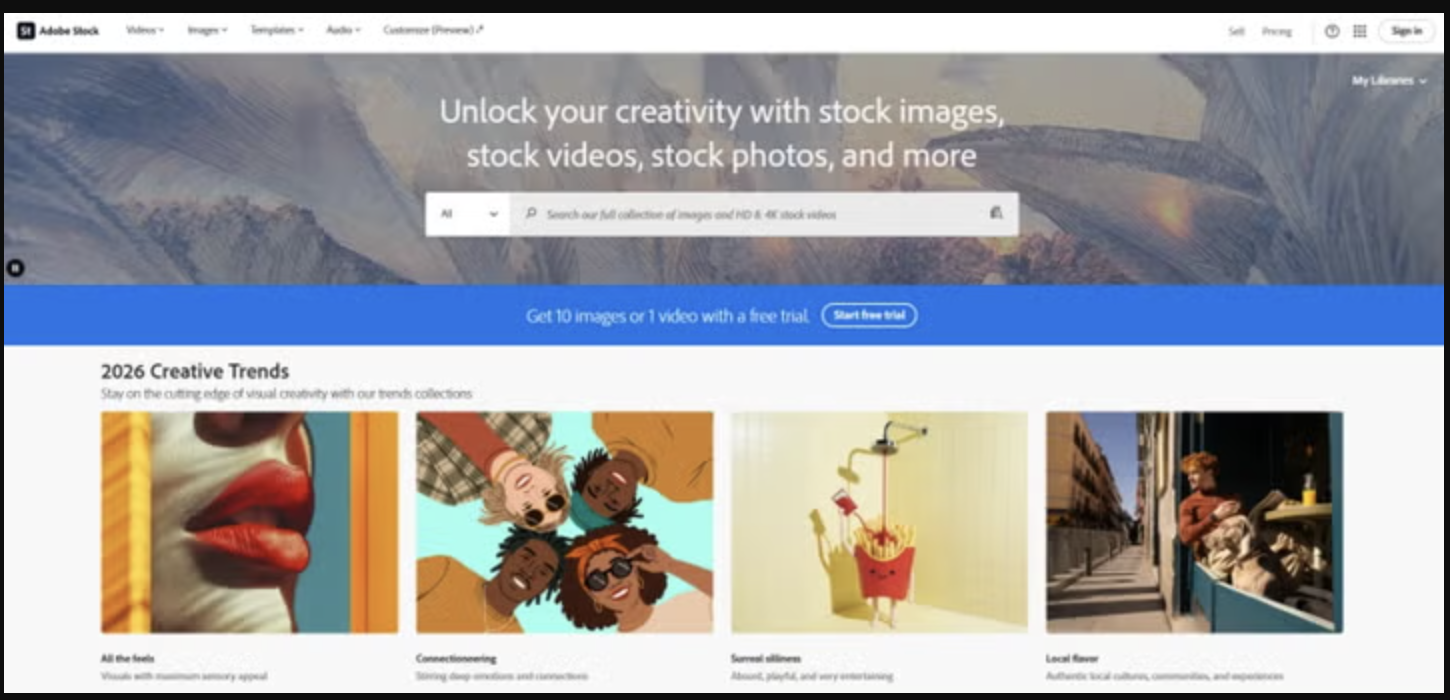
This is exactly the problem Adobe Stock AI Studio was built to close. It’s not an image library with a few filters layered on top. It’s a set of editing tools built directly into the discovery workflow, so the gap between “found it” and “ready to use” gets much shorter.
The Shift: Editing Happens Where You Search, Not After
The traditional stock workflow has always required two separate phases. You find the asset, then you adapt it. Those phases live in different apps, sometimes require different people, and always require time. Adobe Stock AI Studio collapses them into one. Every editing tool in AI Studio lives inside the Adobe Stock interface, which means you can adjust an image to fit your project before you license it.
That changes the logic of how you evaluate assets. Instead of asking “will this work if I fix it in post?”, you can just fix it and see. The decision to license comes after you already know the result fits.
What AI Studio Does to Images
Matching Brand Color Without Rebuilding the Image
Change Color is the tool that gets the most use on teams managing consistent visual identities. It lets you update the full color palette of a stock image without touching the underlying composition, lighting, or texture. You can apply curated presets for quick exploration, enter up to five HEX codes to match an exact brand guide, or drag a second image into the tool and extract its palette to apply across the first one.
For seasonal campaigns, this alone removes a significant amount of manual work. An image sourced for a spring campaign can be shifted to fall tones in the same session, without reopening the file in a separate editor. For teams managing multiple clients or brands with strict visual guidelines, the HEX input means the asset comes out compliant the first time.
Adjusting the Emotional Register of an Image
Change Mood applies a tonal emotional shift – such as serenity, nostalgia, or melancholy – by rebalancing shadows, highlights, and light temperature. Unlike a conventional filter, these adjustments alter the overall atmosphere and light sources of the scene, ensuring the output feels like an intentional artistic decision rather than a digital overlay.
For campaign work where the visual tone needs to align with a specific emotional message, this compresses what would normally be a conversation between art director and retoucher into a direct adjustment. The human judgment is still there; it’s just faster to execute.
Changing Backgrounds Without Leaving Adobe Stock
Subject isolation has historically been one of the most time-consuming steps in preparing stock images for production. Change Background handles both sides of that problem: removing the existing background and replacing it with something new. The removal produces a clean PNG with a transparent background, ready to drop into any design layout. The replacement can come from a text description (the tool generates the environment from scratch based on your input), or from a search directly within the Adobe Stock library.
This is particularly useful for product imagery, where a single shot often needs to appear in multiple contexts. The same product on a white background, on a textured surface, outdoors, or in a lifestyle setting can all come from a single licensed asset.
Extending the Frame for Every Format
Expand Image addresses the aspect ratio problem that every social media manager recognizes. A horizontal image built for a website banner doesn’t become a square Instagram post without either cropping out important elements or stretching in ways that look obviously wrong. Expand Image extends the photo outward in whichever direction you specify, generating new visual content that maintains the original image’s style, lighting, and texture.
You can expand in a specific direction or use preset ratios: ultrawide, landscape, portrait, square. The result is an asset that works across formats without requiring separate crops or additional shoots to cover the gaps. Keep in mind that the quality of the generation varies depending on how complex the original image’s edges are. Simple backgrounds and clean horizons expand better than detailed architectural scenes.
Editing by Description
Text to Edit lets you describe changes in plain language and have the AI execute them. Remove an object from the frame. Shift the lighting from midday to late afternoon. Change the camera angle from eye level to overhead. The instructions don’t require technical knowledge to write, and the output reflects the intent well enough to be usable in most cases without additional adjustment.
For teams that don’t have a dedicated retoucher on call, this brings a meaningful part of that capability into the hands of whoever is building the asset. It won’t replace precision retouching on high-stakes deliverables, but for social content and digital ads, it covers most of what’s actually needed.
Processing Multiple Images at Once
Bulk Edit allows you to apply transformations – like background removal or color shifts – to dozens of assets simultaneously, ensuring campaign-wide consistency in a single operation. Expand an entire month’s worth of social assets to the right aspect ratios without touching each one.
For e-commerce teams and social media departments managing large content libraries, this is where the time savings become significant enough to change how production is scoped.
What AI Studio Does to Video
Color Grading Before You License
The video version of Change Color works the same way as the image tool, with one important difference: it happens at the discovery stage, before you download or license anything. You can browse the library, find a clip that has the right content, and apply your brand’s color palette to it before committing to the license. Cinematic presets handle mood and visual consistency quickly; HEX inputs align the clip to specific brand guidelines; palette extraction lets you pull the color profile from one clip and apply it to another for visual coherence across a sequence.
This matters because video color grading has traditionally required dedicated software and dedicated time. Moving it to the point where you’re selecting the asset changes when that decision gets made, and how much confidence you have in the result before spending the license budget.
Music That’s Built to Match the Footage
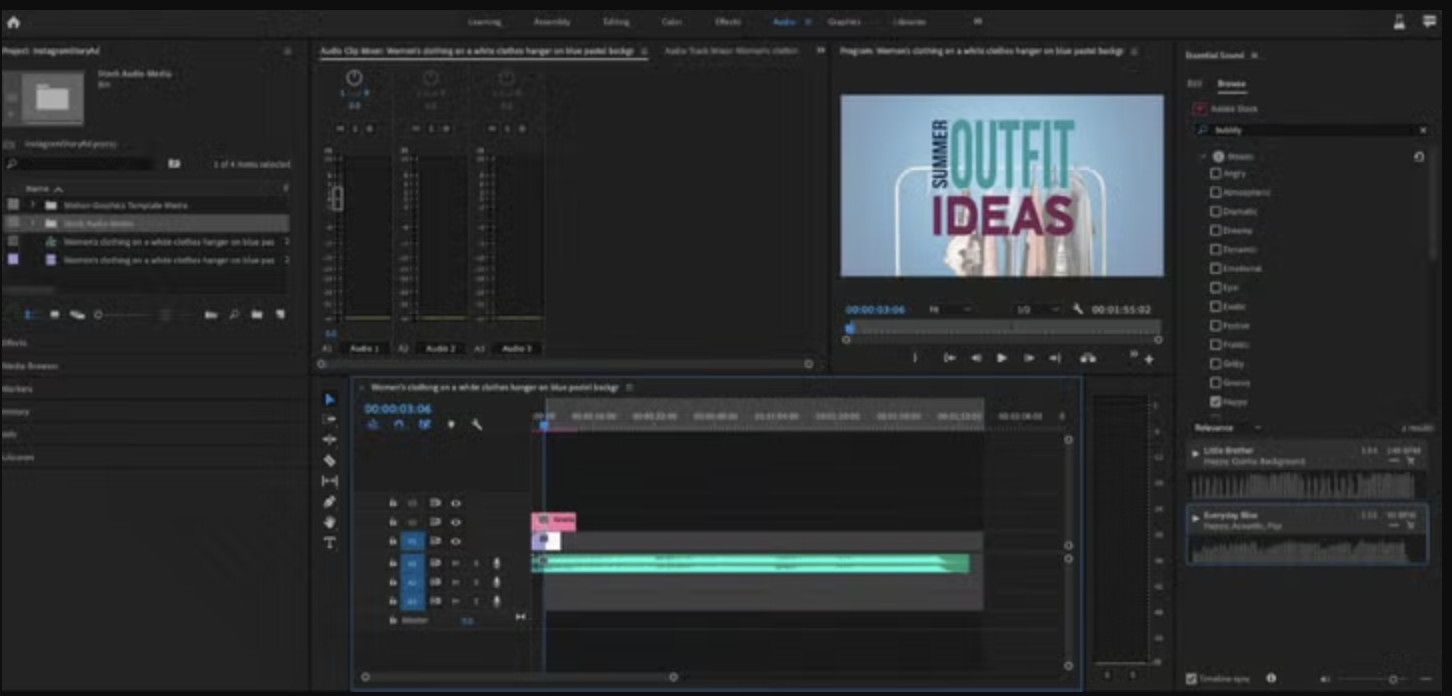
Finding music for video is often harder than it sounds. A track that works in isolation can feel wrong against the actual footage, and the search for something that fits can take longer than editing the video itself. Audio Match generates original, commercially licensed soundtracks designed specifically to complement the pacing and energy of your clip. It analyzes the movement, cuts, and rhythm of the footage and produces a track that aligns with it. You can adjust the vibe, style, and tempo manually, or accept the automatic suggestion as a starting point and refine from there.
The generated tracks are cleared for commercial use within Adobe Stock’s standard licensing framework, eliminating the licensing bottlenecks that often delay content distribution.
Turning Still Images Into Short Video Assets
Animate Image generates a five-second video clip from up to three still images, using AI-driven camera movement to create fluid motion. The output is a 24 FPS video file suitable for social posts, digital ads, and campaign content. For teams that have a strong library of licensed still images but need video output, this extends the value of assets that would otherwise stay static. It works best on landscapes and product photography; complex scenes with multiple moving elements produce less predictable results, so check the output before including it in a final deliverable.
Getting Started with Adobe Stock AI Studio
Adobe Stock plans are available through individual and team subscriptions, with AI Studio tools included across paid tiers. A free trial is available at adobe.com/stock, and it includes licensed downloads in the first month.
The tools described here won’t eliminate every production bottleneck. What they do is move a significant part of the adaptation work to earlier in the process, where it costs less time and involves fewer handoffs. For teams producing high volumes of content on compressed schedules, that shift is what actually moves the numbers.